Back Up Your Phone: 7 Easy, Proven Steps
Losing a phone should not mean losing your photos, contacts, messages and documents. When you back up your phone, you save a copy of that data somewhere safe so that you can restore it if the device is lost, stolen, broken or replaced. It takes only a few minutes to set up, and then it can run automatically. This simple guide explains why you should back up your phone, the main ways to do it, and how often to check that it is working.
Table of Contents
Why You Should Back Up Your Phone
Phones fail in many ways: cracked screens, water damage, software problems, theft or a simple slip on the pavement. Without a backup, photos and videos of family moments may be gone for good. A backup also makes upgrading easier, because your apps, settings and data can be restored to a new phone in one go. Ransomware and account lockouts are other reasons to keep an extra copy.
What a Phone Backup Usually Includes
Most backups cover photos and videos, contacts, calendar entries, app data, device settings, and sometimes text messages and call history. Some items depend on the app: certain messaging apps keep their own separate backup, and some banking or authentication apps do not back up at all. Check the apps that matter most to you instead of assuming everything is included.
Three Ways to Back Up Your Phone
Cloud backup
Both major phone platforms offer a built-in cloud backup, such as iCloud on iPhone and Google backup on Android. It runs automatically when the phone is charging and connected to Wi-Fi. Free storage is limited, so you may need to pay for extra space if you have many photos.
Backup to a computer
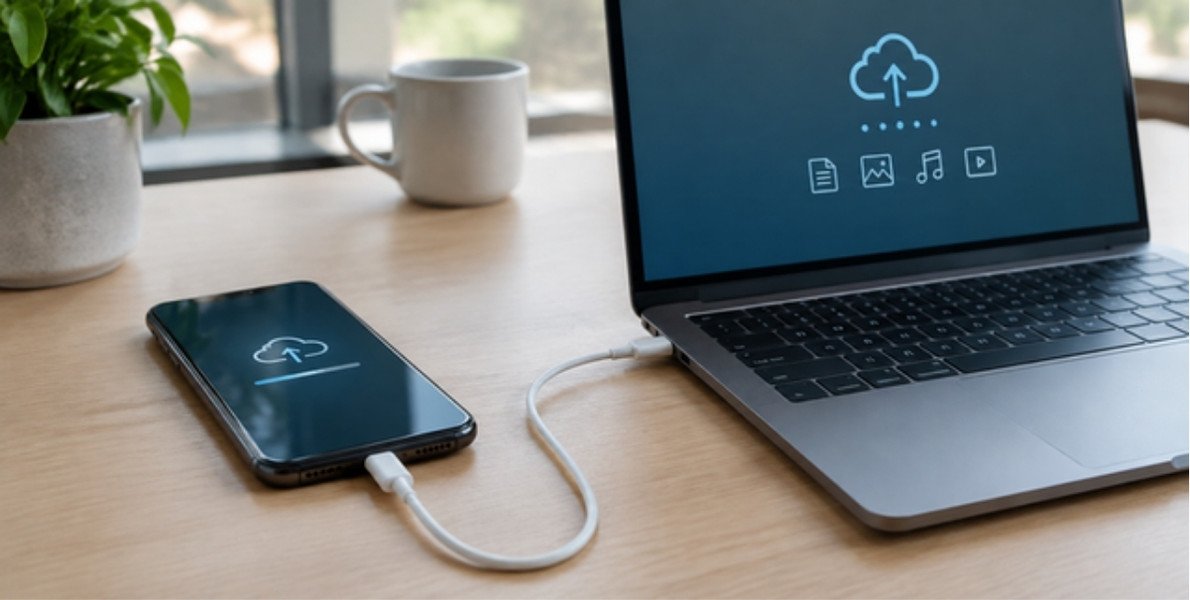
You can connect the phone to a Windows PC or a Mac and copy photos and files, or create a full device backup using the manufacturer’s software. This is a good way to keep a local copy that does not depend on a subscription.
External drive or memory stick
Many phones can copy files to a USB drive or portable disk, either directly or through a computer. Keep this copy in a different place from the phone, such as a drawer at home.
How to Back Up Your Phone Step by Step
- Connect to a trusted Wi-Fi network and plug the phone into a charger.
- Open the phone’s settings and find the cloud backup option for your platform.
- Turn automatic backup on and run a manual backup once to confirm that it works.
- Check that photos are syncing to your photo library service as well.
- Make a second copy to a computer or external drive every month or two for important files.
How Often Should You Back Up Your Phone?
Automatic daily cloud backup is the best default. For extra safety, follow the well-known 3-2-1 rule: keep three copies of important data, on two different types of storage, with one copy kept away from your home or in the cloud. Once in a while, look at the backup date in your settings, because a failed backup is easy to miss.
Protect Your Backup
A backup is only useful if it is also secure. Protect your cloud account with a strong, unique password and turn on two-factor authentication. Our guide to cybersecurity essentials covers more habits that keep your accounts safe. For platform-specific instructions, see the official help pages from Apple Support and Google Android Help.
Back Up Your Phone Before an Upgrade or Repair
The best time to back up your phone is before anything changes. Before you trade in a device, install a major software update or send the phone for repair, follow this short checklist:
- Run a fresh backup and confirm the date shown in your settings is today.
- Make sure your photos and videos are fully uploaded to your photo library.
- Note which apps keep their own backups, such as messaging apps, and back those up too.
- Save your authenticator apps or recovery codes before you wipe anything.
- Sign out of your accounts and remove the device from your account list when you sell or give it away.
How to Restore Your Data From a Backup
Restoring is usually simple. When you set up a new phone, the setup screen offers to restore from a cloud backup or from a computer. Sign in with the same account, choose the most recent backup and keep the phone on Wi-Fi and plugged in while it downloads. Apps and photos can continue to download for some time after the first screens appear, so give it a few hours. Test the important things afterwards: contacts, calendar, messages, photos and the apps you use for banking and work.
Common Problems When You Back Up Your Phone
- Not enough storage: delete old backups, remove large videos you no longer need or buy more cloud space.
- Backup never finishes: connect to a stable Wi-Fi network, plug in the charger and keep the screen on for the first run.
- Backup is old: check that automatic backup is still switched on after a software update.
- Some app data is missing: open the app’s own settings and look for a separate backup option.
- Cannot restore on a new phone: make sure the new phone’s software is up to date and that you are signing in with the right account.
Backup vs Sync: What Is the Difference?
Many people think a synced photo library is a backup, but they are different. Sync keeps your devices identical, so deleting a photo on one device can delete it everywhere. A backup is a separate copy that stays safe even if the original is removed. The safest approach is to use both: sync for convenience, and a regular backup for protection. To keep those accounts secure, read our guide to two-factor authentication and our overview of the password manager options.
Back Up Your Phone FAQ
Can I restore a backup to a different phone?
Usually yes. Both major platforms are designed to restore a backup to a new device, although moving between iPhone and Android needs a different transfer method.
Does a backup use my mobile data?
Automatic backups normally wait for Wi-Fi, so they should not use mobile data unless you change that setting.
Is a cloud backup safe?
Reputable providers encrypt data, but your own account security matters most, so use a strong password and two-factor authentication.