Two-Factor Authentication: 5 Easy Steps to Stay Safe
Two-factor authentication is a login method that asks for two different proofs of identity instead of just a password. Even if a criminal steals or guesses your password, they still cannot get into your account without the second proof. It is one of the simplest and most effective ways to protect email, banking, social media and work accounts, and most major services now support it. This guide explains how two-factor authentication works, compares the main methods, and shows how to set it up.
Table of Contents
What Is Two-Factor Authentication?
Two-factor authentication, often shortened to 2FA, combines two of three kinds of proof: something you know, such as a password or PIN; something you have, such as a phone or security key; and something you are, such as a fingerprint or face scan. A password alone is a single factor. Adding a code from your phone makes it two.
How Two-Factor Authentication Works
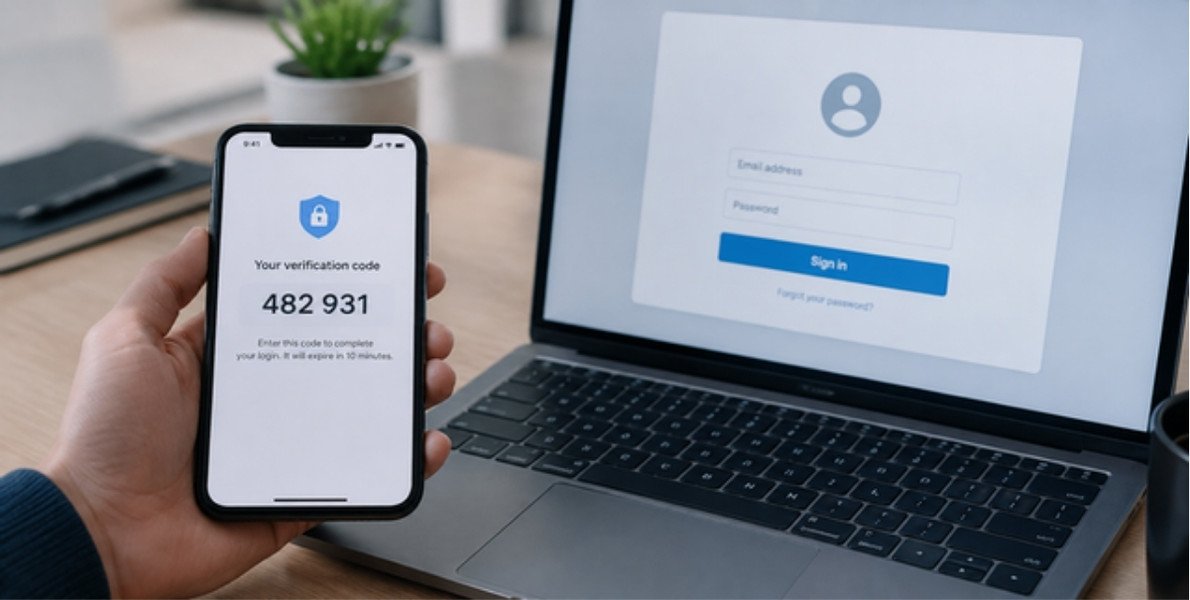
The process is almost always the same. You enter your username and password as usual. The service then asks for a second proof, such as a six-digit code, an approval on your phone, or a tap on a physical key. Only when both checks pass are you let in. Because the second proof changes or needs your device, a stolen password is not enough on its own.
Types of Two-Factor Authentication Compared
Text message (SMS) codes
A code is sent to your phone number. This is easy to use and better than nothing, but it is the weakest option because phone numbers can be hijacked through SIM-swap scams and messages can be intercepted.
Authenticator apps
An app on your phone generates a new code every 30 seconds or so. The codes work offline and are not sent over the phone network, which makes this a strong everyday choice for most people.
Hardware security keys
A small USB or NFC key that you plug in or tap. Security keys are very resistant to phishing because they only work with the real website, so they are a good choice for high-value accounts.
Biometrics and device prompts
Fingerprint, face recognition and approval prompts on a trusted phone are convenient. They are usually secured by the device itself, so keep your phone locked and updated.
How to Set Up Two-Factor Authentication
- Start with your most important accounts: email, banking, cloud storage and social media.
- Open the account’s security or sign-in settings and look for two-step verification or two-factor authentication.
- Choose an authenticator app or a security key if the service offers them, and use SMS only when nothing else is available.
- Save the backup or recovery codes in a safe place, such as a password manager or a printed copy stored securely.
- Test it by signing out and back in, so you know the process works before you need it.
Common Mistakes With Two-Factor Authentication
The most common problem is losing access when a phone is lost or replaced. Always keep recovery codes, and when you move to a new phone, transfer your authenticator accounts before wiping the old one. Another mistake is approving a prompt you did not trigger. If you receive a code or approval request you did not ask for, someone may know your password, so deny it and change the password immediately.
Is Two-Factor Authentication Enough?
It greatly improves your security, but it is not a complete defense. Attackers can still trick people into giving away codes through fake login pages, so stay alert for scams. Our guide to cybersecurity essentials explains the wider habits that keep accounts safe, and our review of the best free antivirus software covers protection for your devices. For more background, see the US Cybersecurity and Infrastructure Security Agency, which publishes plain-language security advice.
Why Passwords Alone Are Not Enough
Passwords are easy to lose. People reuse them across sites, choose words that are simple to guess, and enter them on fake pages. Data breaches also leak millions of passwords that criminals then test on other services. A second step breaks that chain: even when a password is exposed, the attacker is stopped at the next prompt. That is the core value of two-factor authentication.
Which Accounts Should Use Two-Factor Authentication First
Start where a break-in would hurt the most:
- Your main email account, because it can reset almost every other password.
- Online banking, payment apps and shopping accounts with saved cards.
- Cloud storage that holds personal photos and documents.
- Social media accounts that criminals like to hijack to scam your contacts.
- Your password manager, which protects everything else.
- Work accounts, especially anything that gives access to company data.
Passkeys: A Newer Alternative to Passwords
Passkeys are a newer sign-in method that replaces the password with a cryptographic key stored on your device. You approve the sign-in with your fingerprint, face or device PIN, and the website never receives a secret that can be stolen in a breach. Because a passkey only works with the real website, it also resists phishing. A growing number of major services support passkeys, and the FIDO Alliance explains how the standard works. For now, many accounts offer passkeys alongside two-factor authentication, so you can use both.
Two-Factor Authentication for Small Businesses
Small teams are a frequent target because they often lack a dedicated security department. Requiring two-factor authentication for email, accounting software and cloud storage is one of the cheapest ways to reduce risk. Choose authenticator apps or security keys for staff, keep a written recovery plan for lost devices, and remove access quickly when someone leaves. You can also train staff to spot a phishing email, since attackers will try to trick people into handing over codes.
Two-Factor Authentication FAQ
Is two-factor authentication the same as two-step verification?
The terms are used almost interchangeably. Strictly, two-factor authentication uses two different kinds of proof, while two-step verification may use two steps of the same kind.
What if I lose my phone?
Use your saved recovery codes or the account recovery process to regain access, then set up the second step again on the new device.
Does it slow me down?
Only by a few seconds, and many services remember trusted devices so you are not asked every time.